Skip to content
Bouchons

Scan a wine label, import your wine cellar

One photo of the label, and the bottle's details almost fill themselves in. Already keeping track of your cellar somewhere else? It moves into Bouchons in a few minutes, and you can take it back out whenever you want.

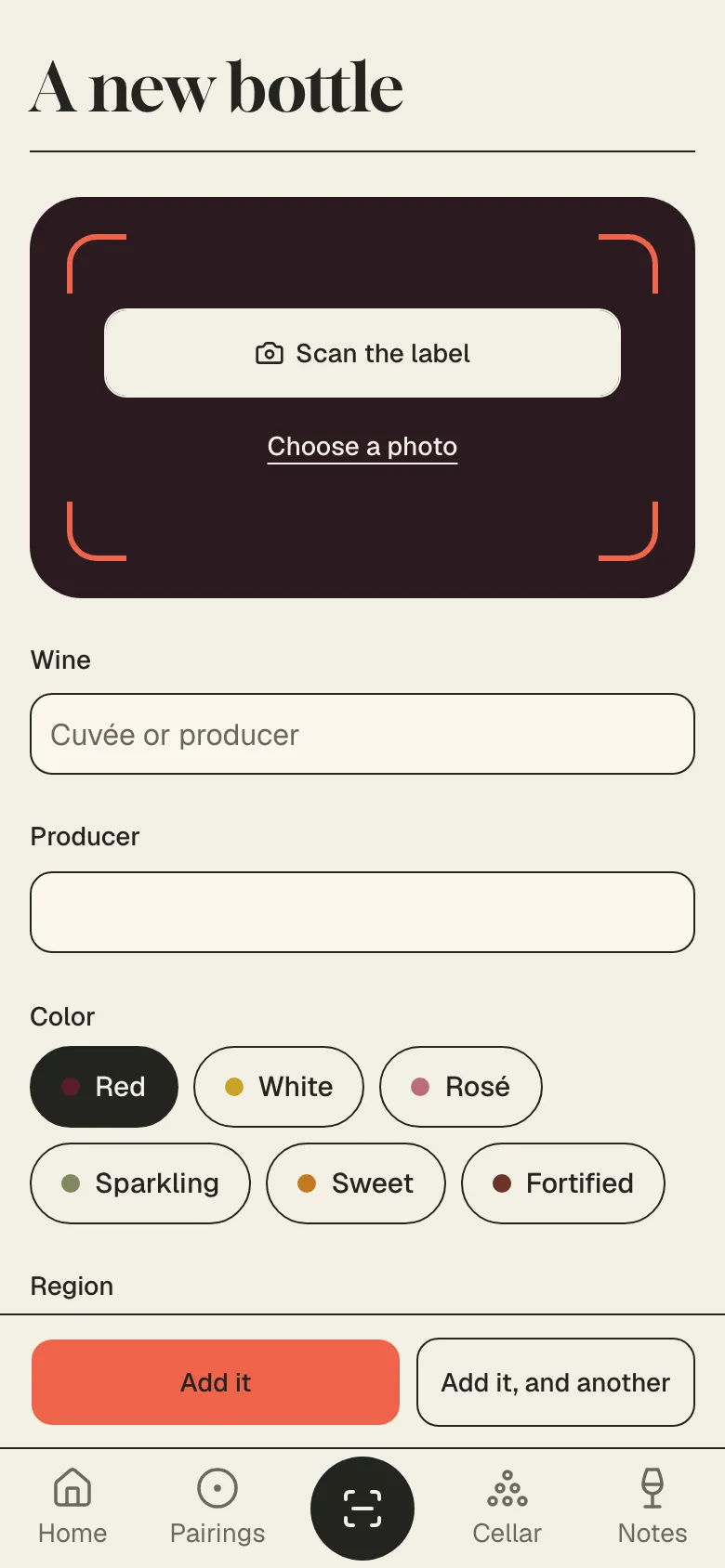
The « A new bottle » form on a phone, with the « Scan the label » button at the top
  • Nothing to install: in your browser, on phone and computer
  • One-click Google sign-in
  • Export your cellar as CSV, any time
  • In English and French

One photo of the label, and the details fill in

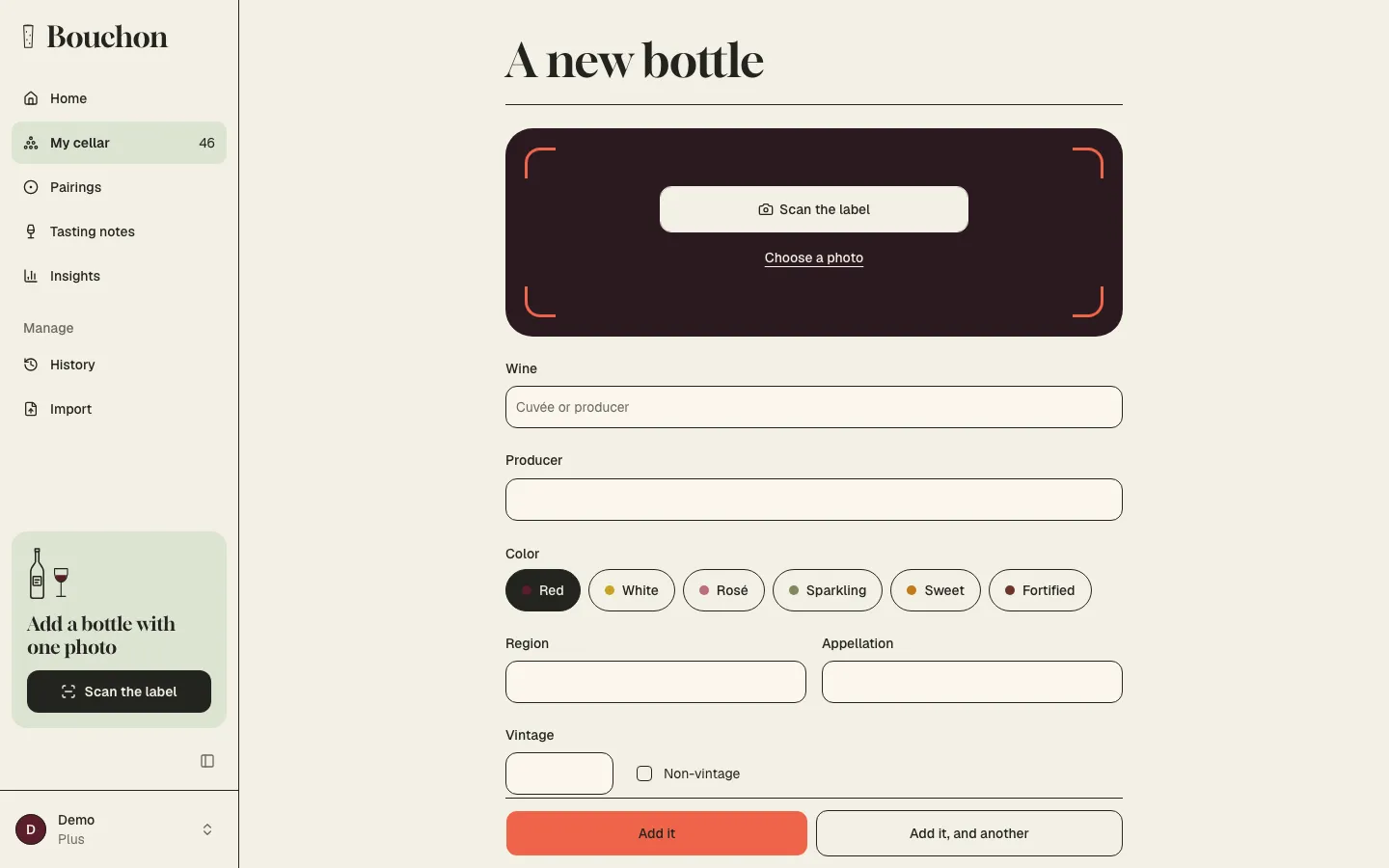
Adding a bottle by hand means copying out a long estate name and hunting for the appellation on the back. With the scan, you keep the bottle in front of you, tap « Scan the label » and take the photo. On a phone, you use the camera or pick a picture from your gallery. On a computer, you choose a file.

Within a few seconds, what's printed on the label lands in the form: the producer, the cuvée, the appellation, the region, the colour, the vintage. The rest of the details follow right after. All that's left is to say how many bottles you're putting away, and the price if you keep track of what you spend.

Everything stays editable. If the label is worn, badly lit or a little unusual, fix whichever field looks wrong, then save. Whatever you enter yourself is never overwritten afterwards, even if the bottle is analysed again.

For a good read, frame the main label straight on, without glare, with a little space around it. A sharp picture is enough, even one taken in the half-light of a cellar. If the vintage or the appellation is on the back label, add those fields yourself in a moment.

The scan accepts photos from most phones, including the iPhone's own format. If a picture can't be read, a message tells you so and you fill in the details by hand. And if you scan the same photo twice, it is only analysed once.
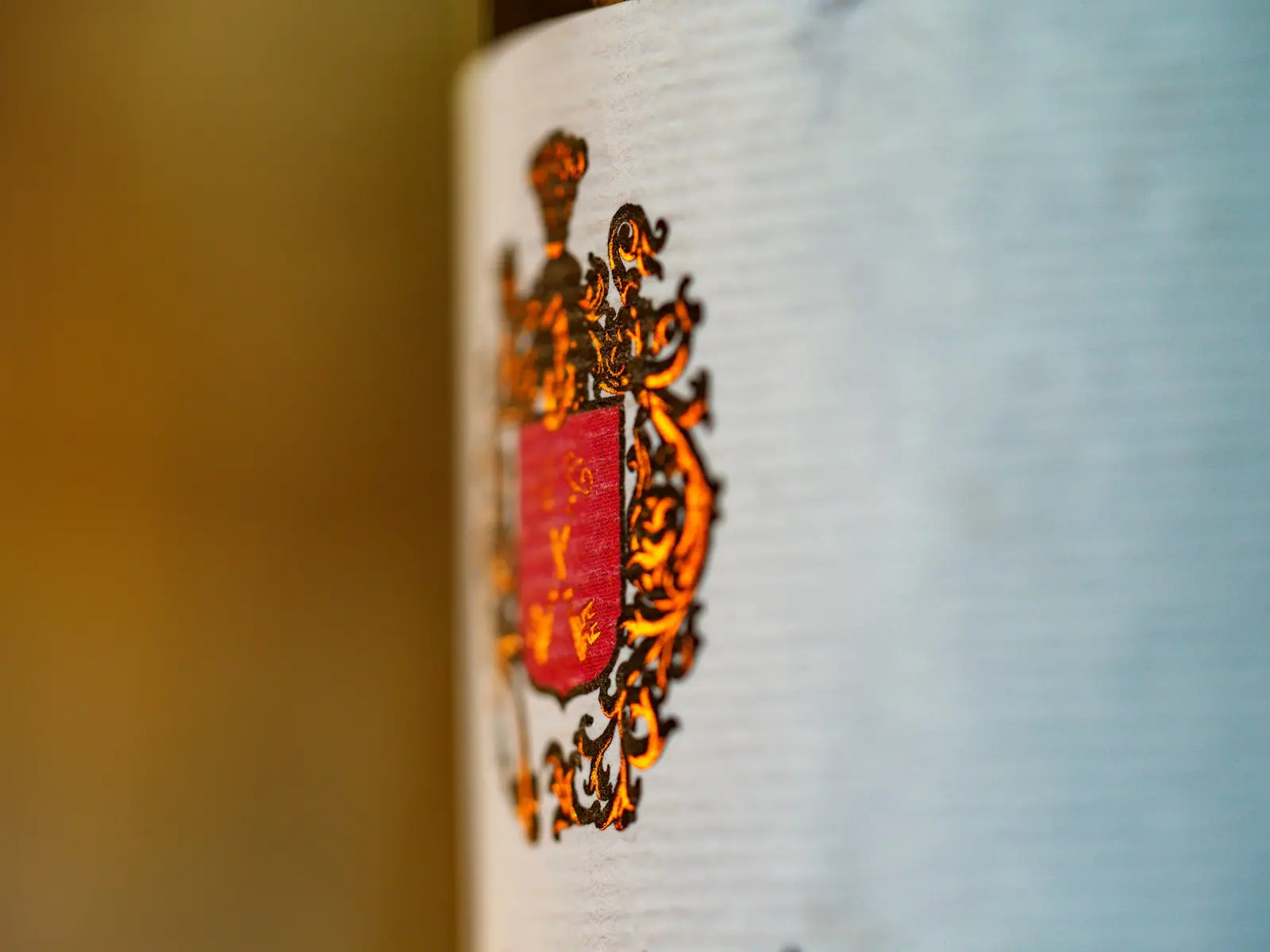
Close-up of a wine bottle's label, with a coat of arms

The suggestions: when to open it, what to serve it with

Once the wine is recognised, Bouchons suggests what's hard to work out on your own: the likely grape varieties, the period when the bottle will be at its best, how it will develop, and a few dishes that will suit it. That drinking window feeds the drinking window page: your bottle sorts itself among those to let sleep, those ready to drink and those to open first.

The suggested dishes join your food and wine pairings. On the evening you wonder what to open with duck breast or a cheese board, the bottle you scanned today is among the answers.

These suggestions are shown as such: each one is marked « Suggested », with a short explanation. They draw on what is known about the producer, the appellation and the vintage, and can be approximate for a rare or very young wine. Adjust them as you like: change the window, remove a pairing, add your own.

The analysis is done by an artificial intelligence (Claude, by Anthropic). The free plan includes a number of free analyses every month; with the Plus plan they are unlimited, within reasonable use. The details are on the Pricing page. An analysis that fails is never counted.

The add-a-bottle form on a computer: the « Scan the label » button, then the wine, producer, colour, region, appellation and vintage fields

Coming from another app or a spreadsheet?

Plenty of wine lovers already keep their cellar somewhere: in another app, in an Excel file started years ago, in a Google Sheets document shared with the family. Nobody wants to type it all again bottle by bottle. With the import, you bring your file, Bouchons reads it, you check it, and your cellar is there.

Today, Bouchons can read the « for insurance » PDF export of a widely used cellar app, understanding each line for you, and any CSV file: an Excel, Numbers or Google Sheets spreadsheet saved as CSV, or the CSV export of your previous app. More formats are on the way, so that switching tools stays simple.

For a spreadsheet, you can start from our template, in English, with an example row. Your own file works too: columns are recognised whatever their capitals, accents or language, and an unknown column is ignored. Prices can be written the way you're used to, with a comma or a full stop.

Nothing goes into your cellar without your say-so. Before the import, you see an editable preview of every wine: you fix a name, change a colour, untick a row. A row with an error is flagged without holding up the others. The preview also tells you how many bottles are about to come in and what your plan allows.

Duplicates are spotted. If a wine from the file is already in your cellar, the preview marks it « Already in your cellar », with the number of bottles. You choose to skip it or to add the bottles to the existing quantity. So you can import an updated file again without doubling everything.

When you confirm, everything is saved in one go, or nothing at all. The imported wines then get their drinking-window and pairing suggestions, just like a scanned bottle. The file is only read for the duration of the import and is never kept.

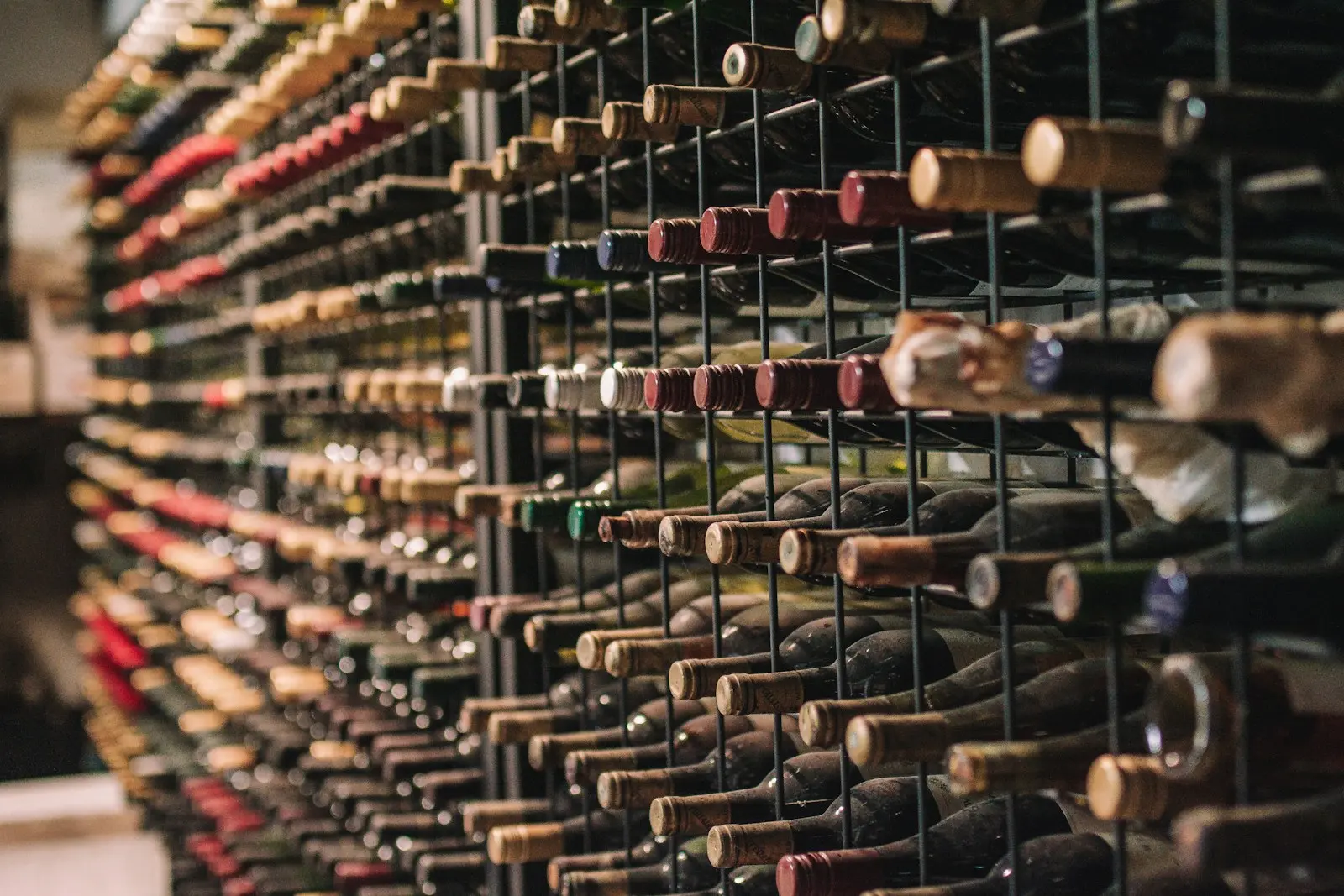
A metal rack full of wine bottles, in warm light

Your cellar, your data

A cellar is years of purchases, gifts and tasting notes, and it belongs to you. From your account, the « Export as CSV » button downloads all your bottles into a file you can open in any spreadsheet, keep as a backup or import again later. Export always works, even if you stop your subscription.

Label photos are kept in a private space, in Europe, that only you can access. For the analysis, the photo is sent to our artificial intelligence provider, Anthropic, in the United States, for that analysis alone. A photo that was scanned but never saved with a wine is deleted after 7 days; the others are deleted when you delete the wine.

You can also delete your account from the same page. Everything is then erased for good, photos included, after a 30-day delay. Export your cellar first if you want to keep it. Day-to-day cellar management has its own page.

The « My data » card on the Account page, with the « Export as CSV » button

How Bouchons handles it

  1. Scan or import

    One label photo for one bottle, or your file for the whole cellar at once.

  2. Check

    The bottle's details or the import preview appear. Fix what needs fixing and choose what to do with duplicates.

  3. Save

    Your bottles are in your cellar, with their drinking window and suggested pairings.

Frequently asked questions

Tonight, open the right one.

Free up to 10 bottles. No credit card.